


I Thought 100GB Would Be More Than Enough — I Was Wrong.
The first time Google told me my Gmail storage was full, I was genuinely shocked. I had no idea that my emails, Google Drive files, and Google Photos all shared the same storage space.
I deleted hundreds of emails, emptied my Trash folder, and thought I had solved the problem. But barely a week later, my storage was full again.
You may also read: How AI Is Changing Jobs and Businesses in Nigeria
With no other choice, I subscribed to Google’s 100GB storage plan. At the time, I believed that would be more than enough for years.
I was wrong.
Fast forward to today, my 100GB storage is already about 85% full, and Google has started prompting me to upgrade again. Under normal circumstances, I probably would have paid for a larger plan without thinking twice. But with the current economic realities in Nigeria, paying for even more cloud storage wasn’t something I wanted to do.
So instead of reaching for my wallet, I decided to find another solution.
I spent hours researching how Google storage actually works, testing different cleanup methods, and discovering where most of my storage had disappeared. To my surprise, I managed to reduce my storage usage from around 85GB to nearly 50GB without deleting anything important.
Although my storage has started filling up again—as expected over time—I now know exactly how to clean it up whenever it gets close to the limit.
That experience inspired me to write this guide because I know I’m not the only person facing this problem.
You may also read: How to Make Money With AI in Nigeria (Part 3)
Every Google account comes with 15GB of free storage, shared across Gmail, Google Drive, and Google Photos. At first, that sounds like plenty of space. But after years of emails, attachments, WhatsApp backups, PDFs, videos, screenshots, and automatic photo uploads, that storage disappears much faster than most people expect.
When your Google storage becomes full, Gmail stops receiving new emails. Google Drive can no longer sync files properly. Google Photos stops backing up your memories. For students, professionals, freelancers, business owners, and anyone who relies on Gmail every day, this is more than an inconvenience—it can mean missed opportunities, delayed communication, and unnecessary stress.
In this guide, I’ll show you the exact steps I used to reclaim tens of gigabytes of storage, including the Gmail search commands, cleanup techniques, and simple maintenance habits that have helped me keep my Google account under control without immediately paying for another storage upgrade.
You may also read: How to Make Money With AI in Nigeria (Part 2)
First: Check How Much Storage You Are Using
Before deleting anything, check where your storage actually goes. Go to one.google.com/storage on any browser while logged into your Google account.
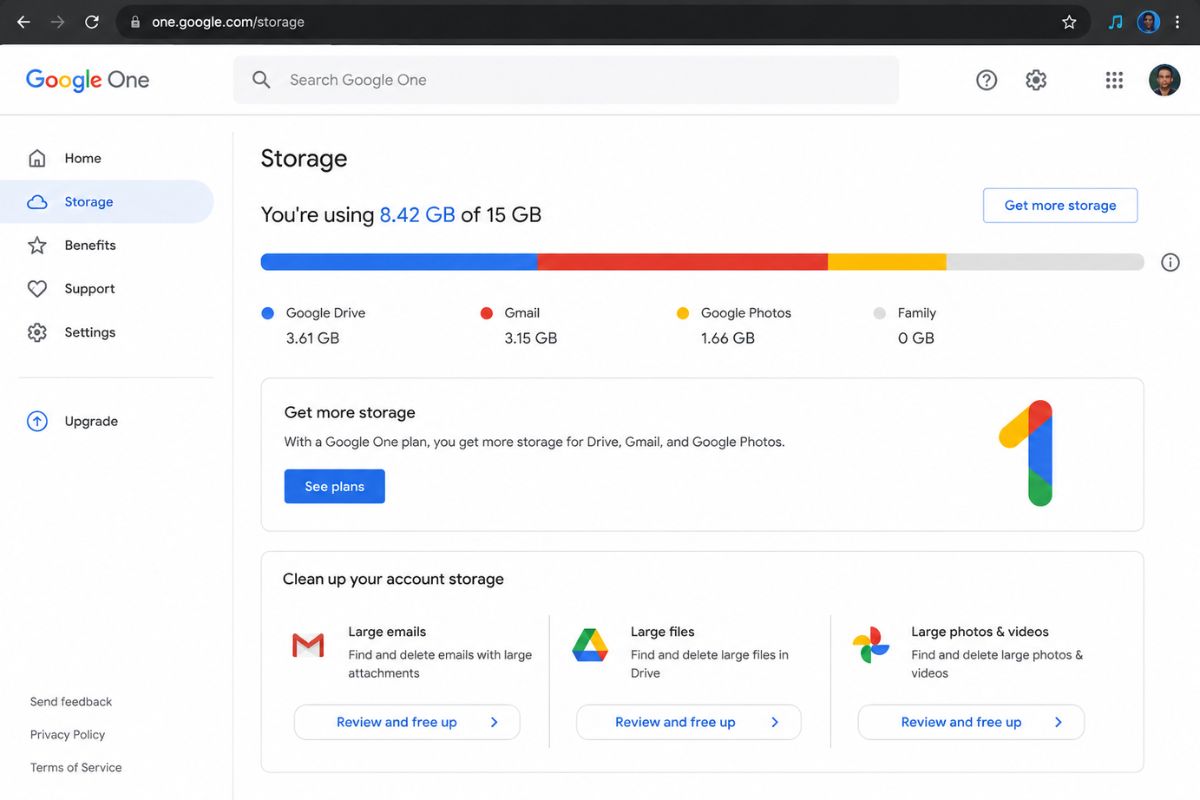
You will see a breakdown showing how much Gmail, Google Drive, and Google Photos each consume. This tells you where to focus first.
| What Uses Your 15GB | Impact | Fix |
|---|---|---|
| Gmail (emails and attachments) | Takes biggest share | Delete old emails and large attachments first |
| Google Drive (files, Docs, Sheets) | Second biggest | Delete old files, empty Drive trash |
| Google Photos (images and videos) | Often overlooked | Compressed photos still count toward the 15GB limit |
| Google One upgrade (100GB) | NGN 380/month approx. | Worth it if your business depends on Google tools |
TIP: If Gmail is consuming the most space, start with Methods 1 and 2 below. If Drive is the biggest culprit, jump to Method 4. Most people find Gmail and Drive together account for over 80% of their usage.
Method 1: Delete Emails Older Than 10 Years
This is the fastest way to free up large amounts of space. Gmail has a built-in search operator that filters emails by age. You type it directly into the Gmail search bar — no settings menus, no third-party tools needed.
Gmail Search Operator
older_than:10y
Shows every email in your inbox older than 10 years. Replace 10y with 5y, 3y, or 1y to adjust the time range.
You may also read: How to Build Multiple Streams of Income in Nigeria Without Getting Burned
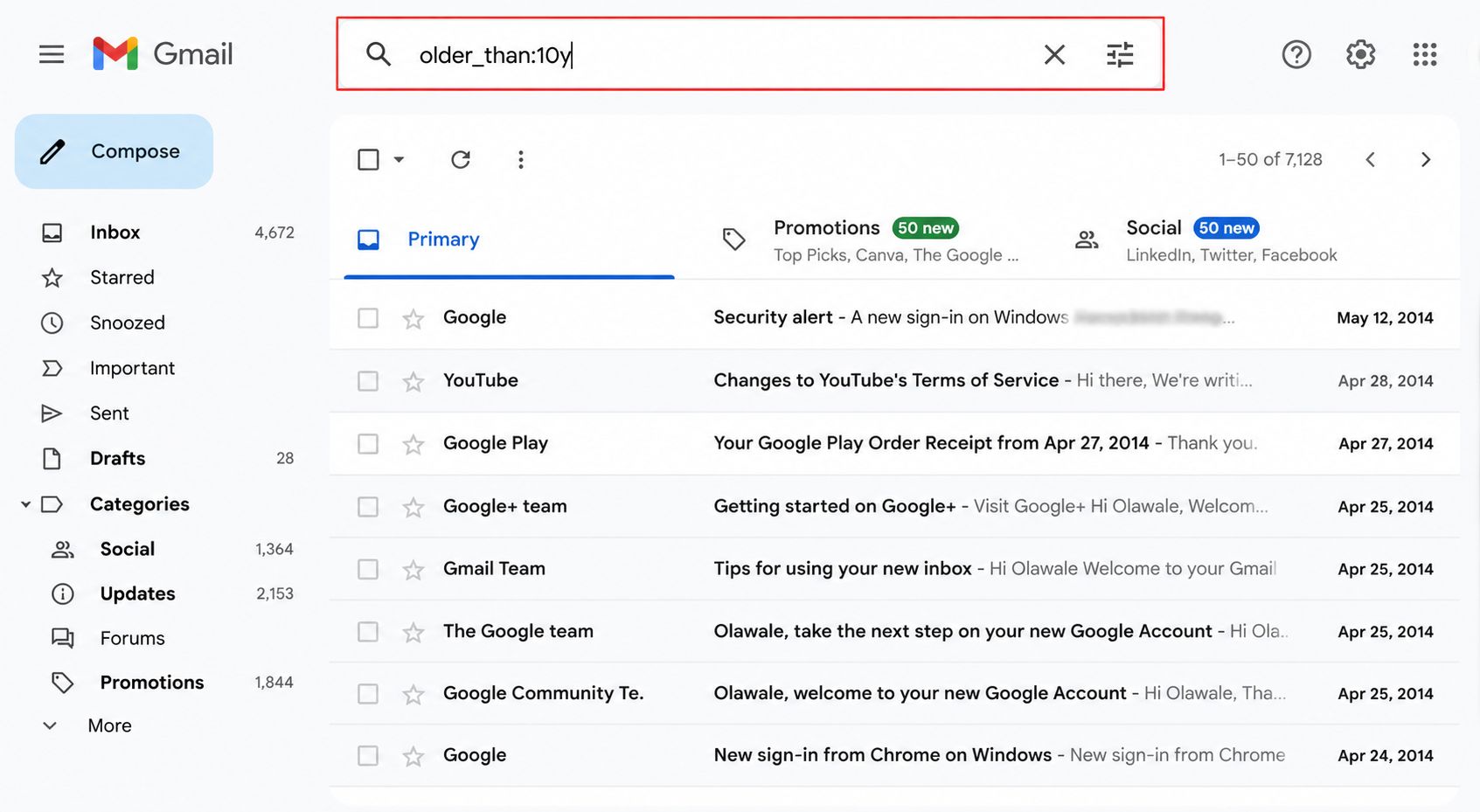
Step 1: Open Gmail and type the operator into the search bar
Go to mail.google.com on your browser — this works better on desktop than mobile for bulk actions. Click the search bar at the top and type:
Gmail Search Operator
older_than:10y
Finds all emails — sent, received, and archived — that are more than 10 years old
Step 2: Press Enter and review the results
Gmail will display every email matching that criteria. You will likely see thousands of results. You do not need to review them individually.

Step 3: Select all emails on the current page
Tick the checkbox at the top left of the email list. This selects all emails visible on the current page — usually 50 at a time.

1Step 4: Select ALL matching emails, not just the current page

This is the step most people miss. After ticking the page checkbox, Gmail shows a message at the top: “All 50 conversations on this page are selected. Select all conversations that match this search.”
Click that second link. This selects every email matching your search — not just the 50 on screen.
IMPORTANT: Only do this if you are confident you want to delete all emails older than your chosen date. There is no undo once you empty the trash. If you are unsure, start with older_than:15y first to test on a smaller, older batch.
Step 5: Click Delete (the bin icon)
With all matching emails selected, click the bin icon in the toolbar. Gmail moves them all to Trash. They are not permanently deleted yet — they sit in Trash for 30 days before automatic deletion.

Step 6: Empty the Trash to reclaim storage immediately
Go to the left sidebar and click More, then Trash. At the top of the Trash folder, click Empty Trash Now. This permanently deletes everything and storage space returns to your account within minutes.
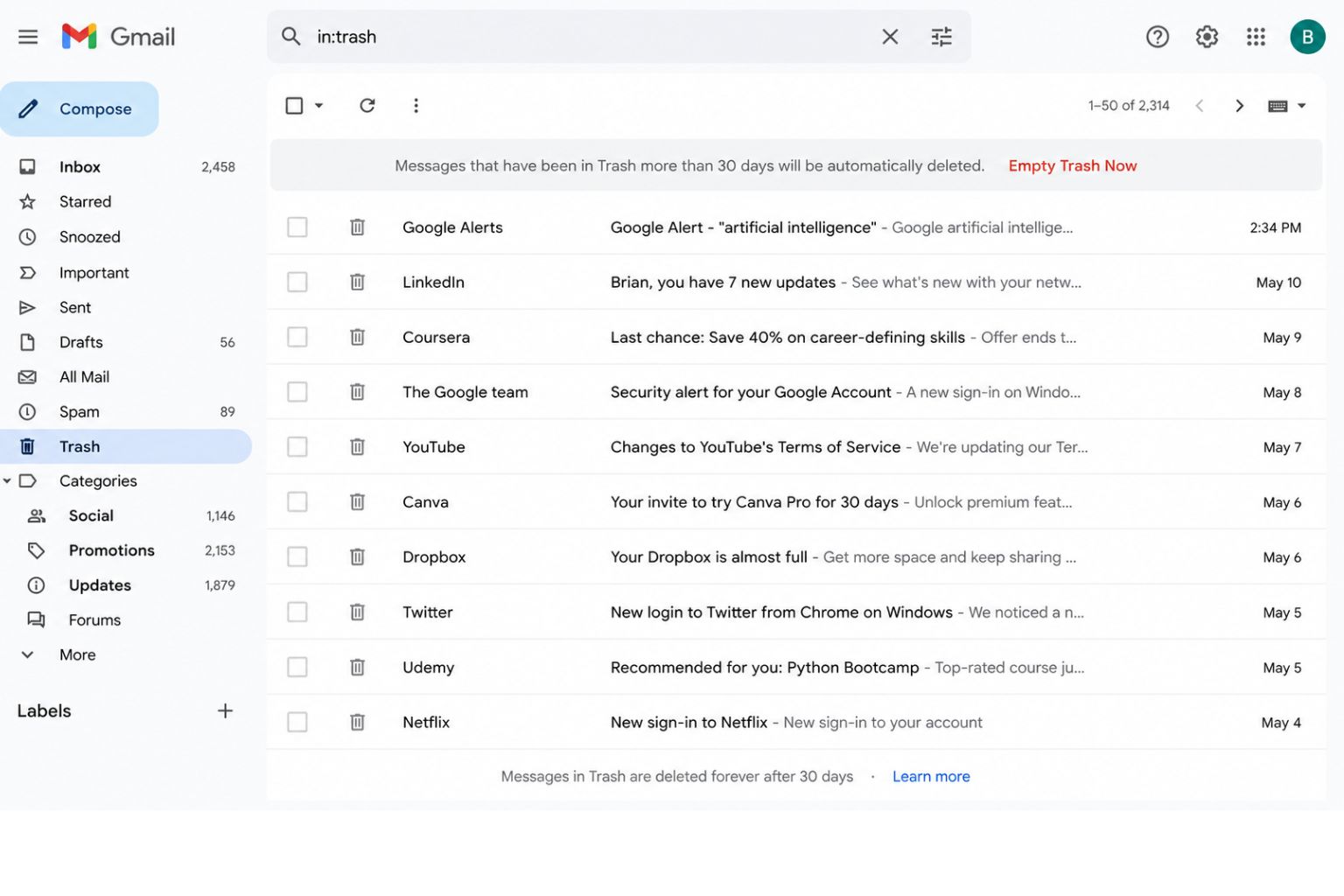
TIP: Storage does not always update instantly. After emptying Trash, wait 10 to 15 minutes then refresh your storage page at one.google.com/storage to see the reclaimed space.
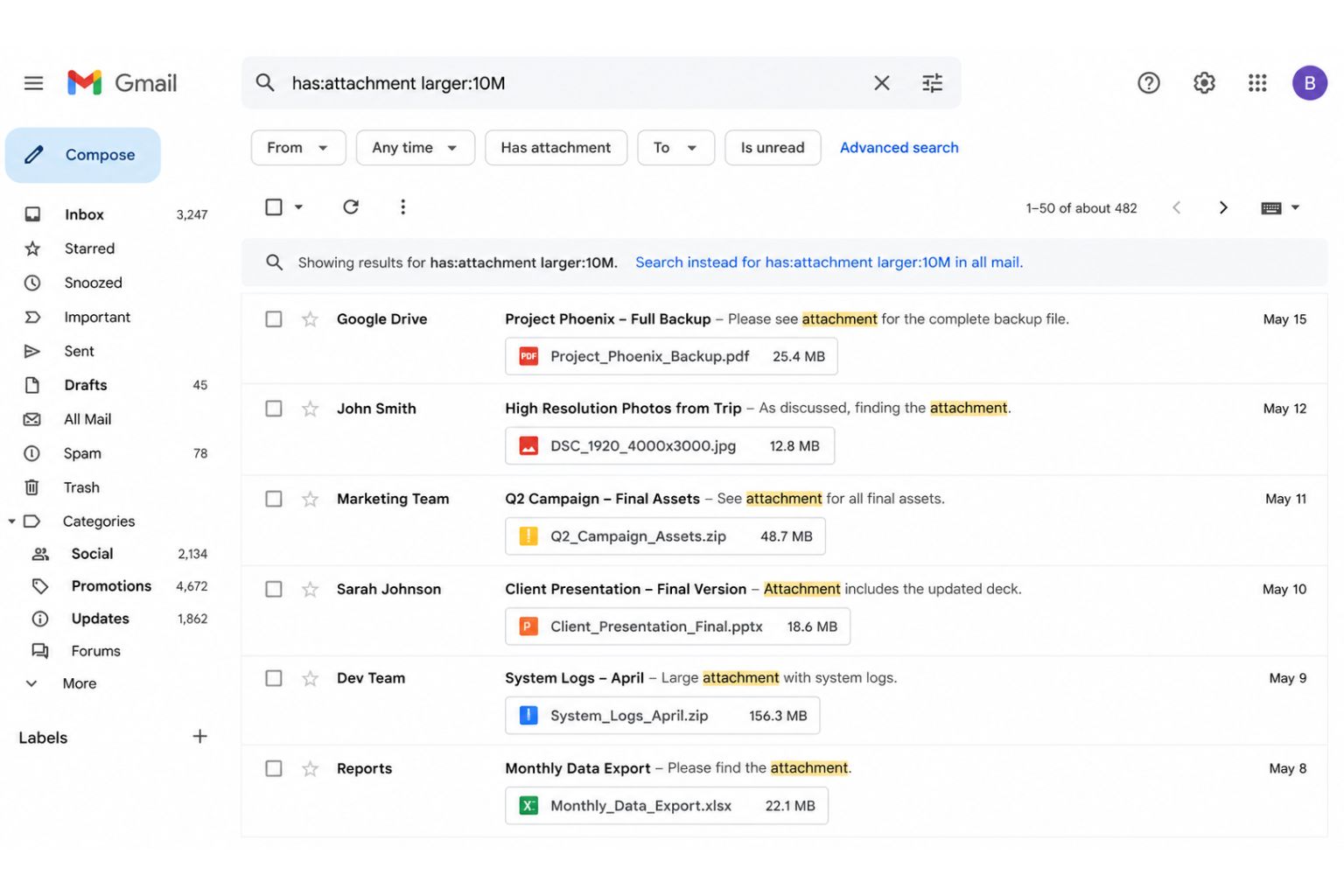
Method 2: Find and Delete Emails With Large Attachments
A single email with a 25MB video attachment takes up more space than 500 plain text emails. Targeting large attachments gives you maximum storage recovery for minimum effort.
Gmail Search Operator
has:attachment larger:10MB
Finds every email containing an attachment larger than 10MB. Adjust the size — try 5MB or 25MB.
You can also combine operators to target large, old attachments safely in bulk:
Combination Operator
has: attachment larger:5MB older_than:3y
Large attachments that are also more than 3 years old — the safest bulk delete target
Method 3: Clear Promotions, Social, and Spam Folders
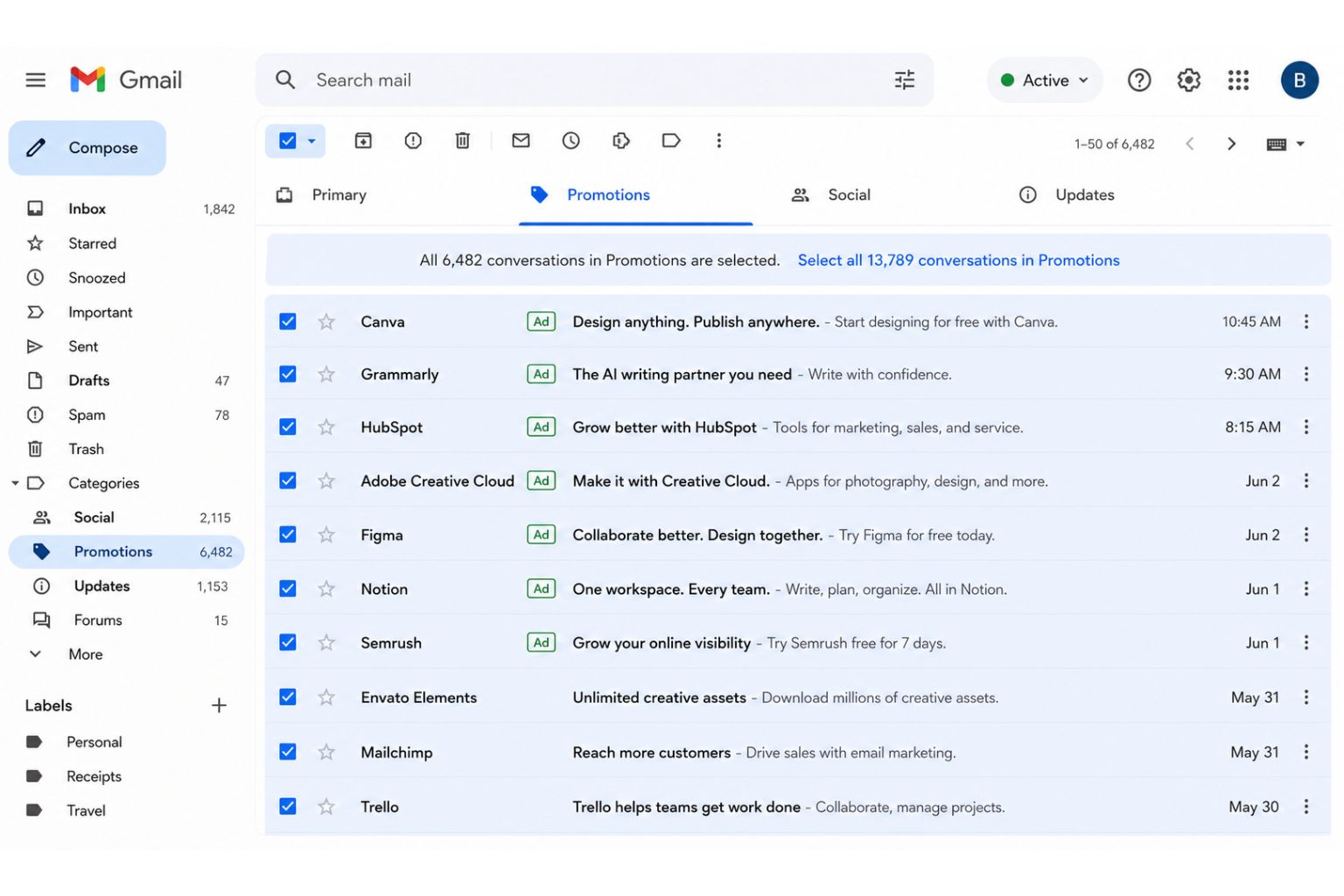
Gmail automatically sorts incoming mail into categories: Primary, Promotions, Social, Updates, and Forums. The Promotions tab alone can hold thousands of marketing emails from every newsletter, online store, and notification you have ever subscribed to.
Delete everything in Promotions
- Click the Promotions tab in your Gmail inbox
- Tick the master checkbox to select all emails on the page
- Click “Select all conversations in Promotions” when the banner appears
- Click Delete
- Go to Trash and click Empty Trash Now
Delete everything in Spam
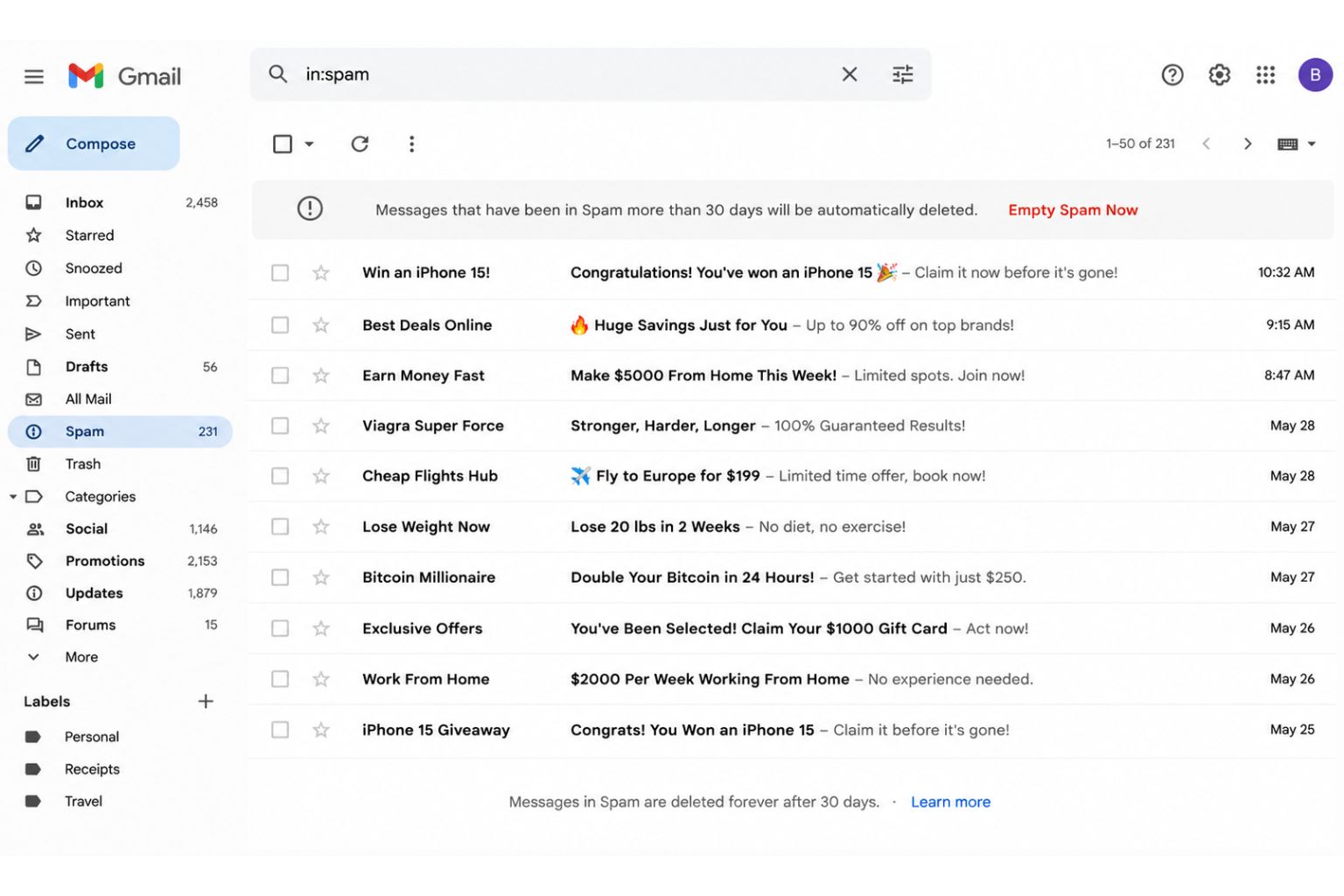
Go to the left sidebar, click More, then Spam. Click Empty Spam Now. Gmail deletes all spam emails permanently — no need to go through Trash for this one.
Unsubscribe before you delete
Deleting promotional emails frees space today, but if you stay subscribed, they refill your inbox within weeks. Open any promotional email and look for the Unsubscribe link Gmail displays next to the sender name at the top of the email. Do this for the 10 to 20 senders you recognise but never actually read.

TIP: Under Settings > See All Settings > Filters and Blocked Addresses, you can set up filters to auto-delete future emails from specific senders. This prevents the buildup from recurring.
Method 4: Manage Google Drive and Google Photos Storage
Gmail is not always the main culprit. If your Drive or Photos is consuming most of your 15GB, you need to clean those up separately.
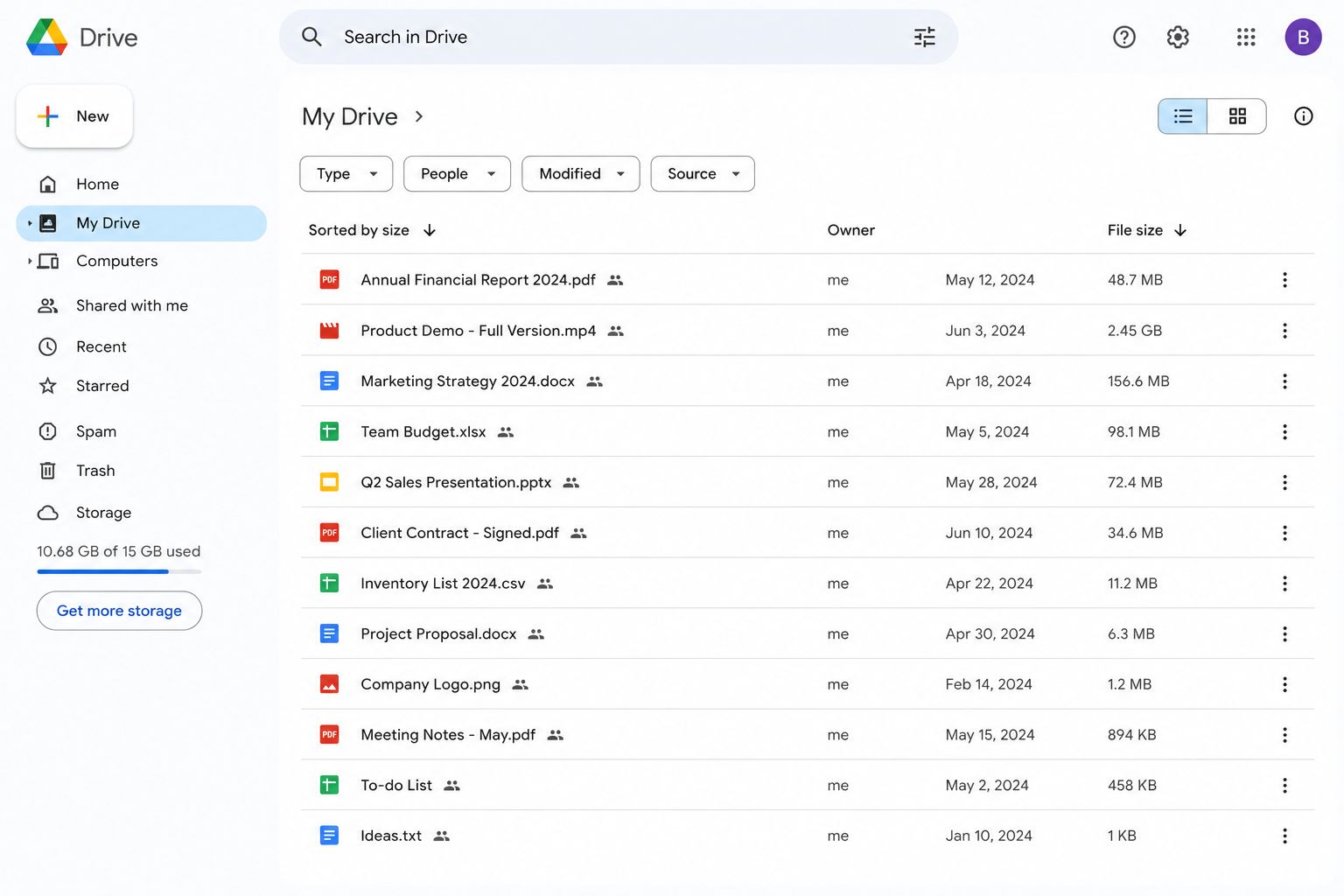
Clean up Google Drive
- Go to drive.google.com
- In the left sidebar, click Storage — this shows all files sorted by size, largest first
- Review the largest files. Right-click any you no longer need and select Remove
- Go to Bin in the left sidebar and click Empty Bin to permanently delete and reclaim the space
<nsbp;>
2Clean up Google Photos

Go to photos.google.com. Look for videos first — they consume the most space. Select unwanted photos or videos, click the bin icon, then go to Bin in the left sidebar and click Empty Bin.
IMPORTANT: Google Photos backs up photos from your phone automatically if backup is enabled. Deleting photos from Google Photos may also delete them from your phone if you have not saved local copies. Check your backup settings before bulk-deleting photos.
More Gmail Search Operators to Target Specific Clutter
Beyond older_than and has:attachment, Gmail has several other powerful search operators for specific types of clutter:
Gmail Search Operator
category:promotions
Shows all emails in your Promotions category — same as clicking the Promotions tab
Gmail Search Operator
is:unread older_than:1y
Shows unread emails older than 1 year — if you have not read it in a year, you probably never will
Gmail Search Operator
from:noreply
Shows all automated emails from no-reply addresses — usually safe to bulk delete
Gmail Search Operator
has:attachment older_than:1y filename:pdf
Finds PDF attachments older than 1 year — download anything important, then delete the emails
How to Upgrade Google Storage (If You Need More)
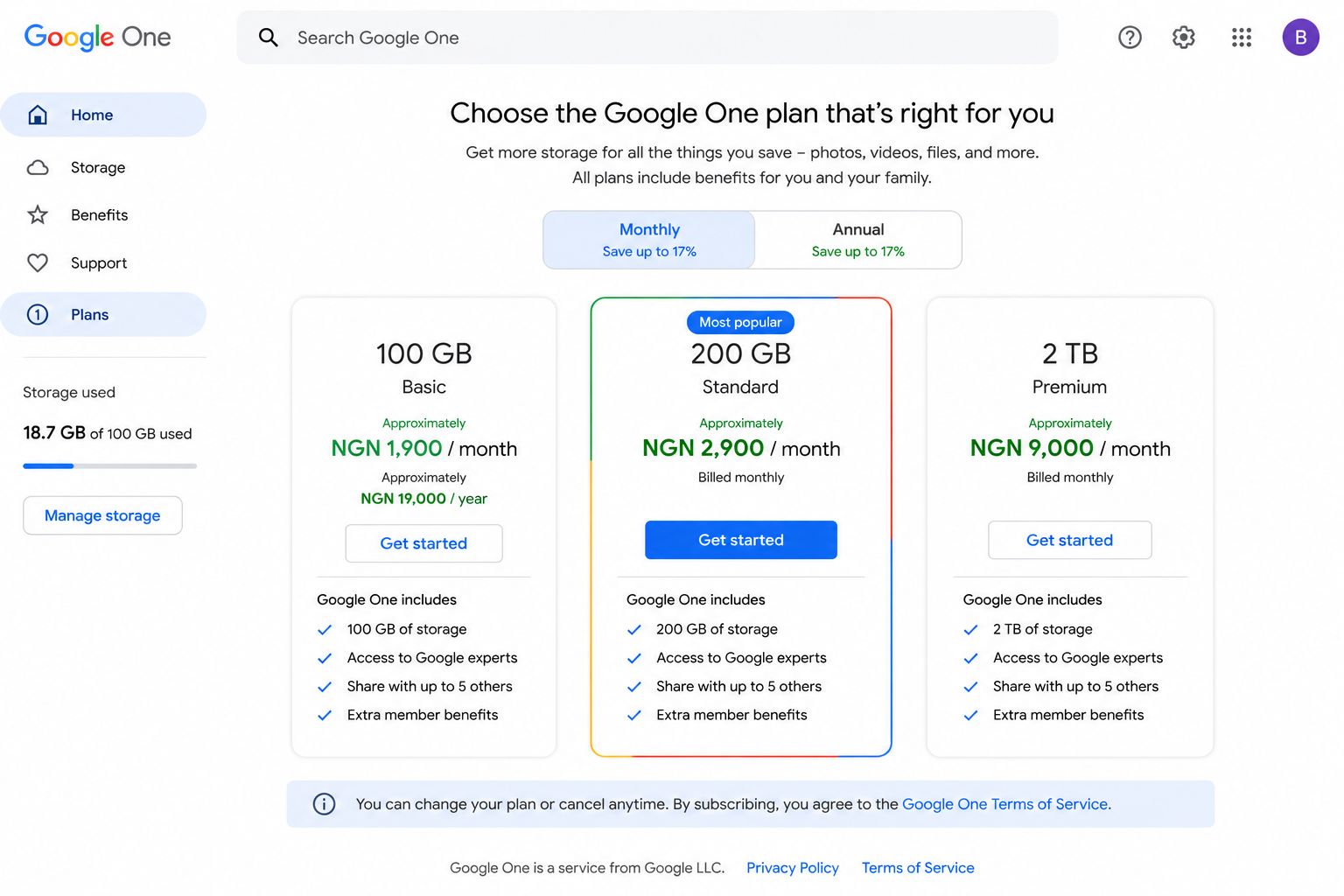
If you clean everything up and still need more space, Google One offers paid storage upgrades at reasonable prices for Nigerian users.
- 100GB: approximately NGN 1,900 per month or NGN 19,000 per year
- 200GB: approximately NGN 2,900 per month
- 2TB: approximately NGN 9,000 per month
To upgrade, go to one.google.com and click Get More Storage. You can pay with a naira debit card.
<nbsp;>
TIP: For Nigerian business owners using Gmail as a primary business email, the 100GB plan at NGN 380/month eliminates the storage anxiety permanently. Alternatively, Google Workspace (from NGN 900/month) gives you 30GB per user plus proper business email features like [email protected].
Quick Reference: Gmail Cleanup Checklist
Run through this checklist every 6 months to keep your Gmail and Google storage clean:
- ☐ Search
older_than:5yand delete bulk old emails - ☐ Search
has:attachment larger:10MBand review large attachment emails - ☐ Empty the Promotions tab fully
- ☐ Empty the Spam folder
- ☐ Unsubscribe from newsletters you never read
- ☐ Open Google Drive, sort by size, delete the largest unused files
- ☐ Empty Drive Bin
- ☐ Review Google Photos for large videos you no longer need
- ☐ Check storage level at one.google.com/storage
- ☐ Set a 6-month calendar reminder to repeat this process
A full Gmail cleanup takes 20 to 30 minutes the first time. After that, a quarterly 10-minute run through the checklist keeps your storage from building up again. The older_than operator alone — run once on a 10-year-old account — can free several gigabytes in under five minutes.